Setting Up coc.nvim for Ruby Development
Conquer of Completion
If you don't already know what coc.nvim is, take a look at the project README and Wiki. To give you an idea:
- Full Language Server support
- Extension system similar to VSCode
- Allows implementing tooling such as Code Actions, Code Lens, and more
- Some coc.nvim extensions are even passthroughs to VSCode extensions
To complete this guide you need:
- Vim or Neovim
- Reasonably up-to-date versions of Node and Ruby. You'll need
gemandnpmavailable
Installing coc.nvim
To get started, install the package via your package manager. I use vim-plug:
Plug 'neoclide/coc.nvim', {'branch': 'release'}
If you use another, check out these installation examples
Now you're all set to :PlugInstall. You can confirm it's all working by using :CocInfo, which should open a split with some information like this:
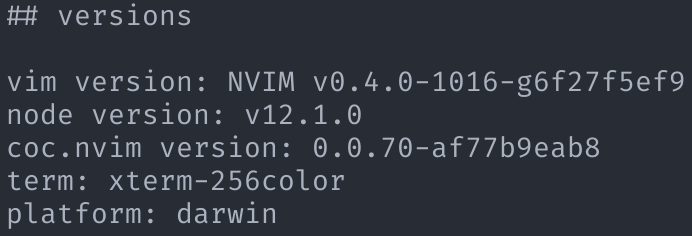
If you've gotten this far, good job! coc.nvim is now installed.
By default, you won't notice much different. Here's a mapping that'll get the completion popup working:
inoremap <silent><expr> <TAB>
      \ pumvisible() ? "\<C-n>" :
      \ <SID>check_back_space() ? "\<TAB>" :
      \ coc#refresh()
inoremap <expr><S-TAB> pumvisible() ? "\<C-p>" : "\<C-h>"

function! s:check_back_space() abort
  let col = col('.') - 1
  return !col || getline('.')[col - 1]  =~# '\s'
endfunction
There are several other mappings you might find useful. See :help coc-interface
Now open up some code and start typing. You should notice the completion menu:
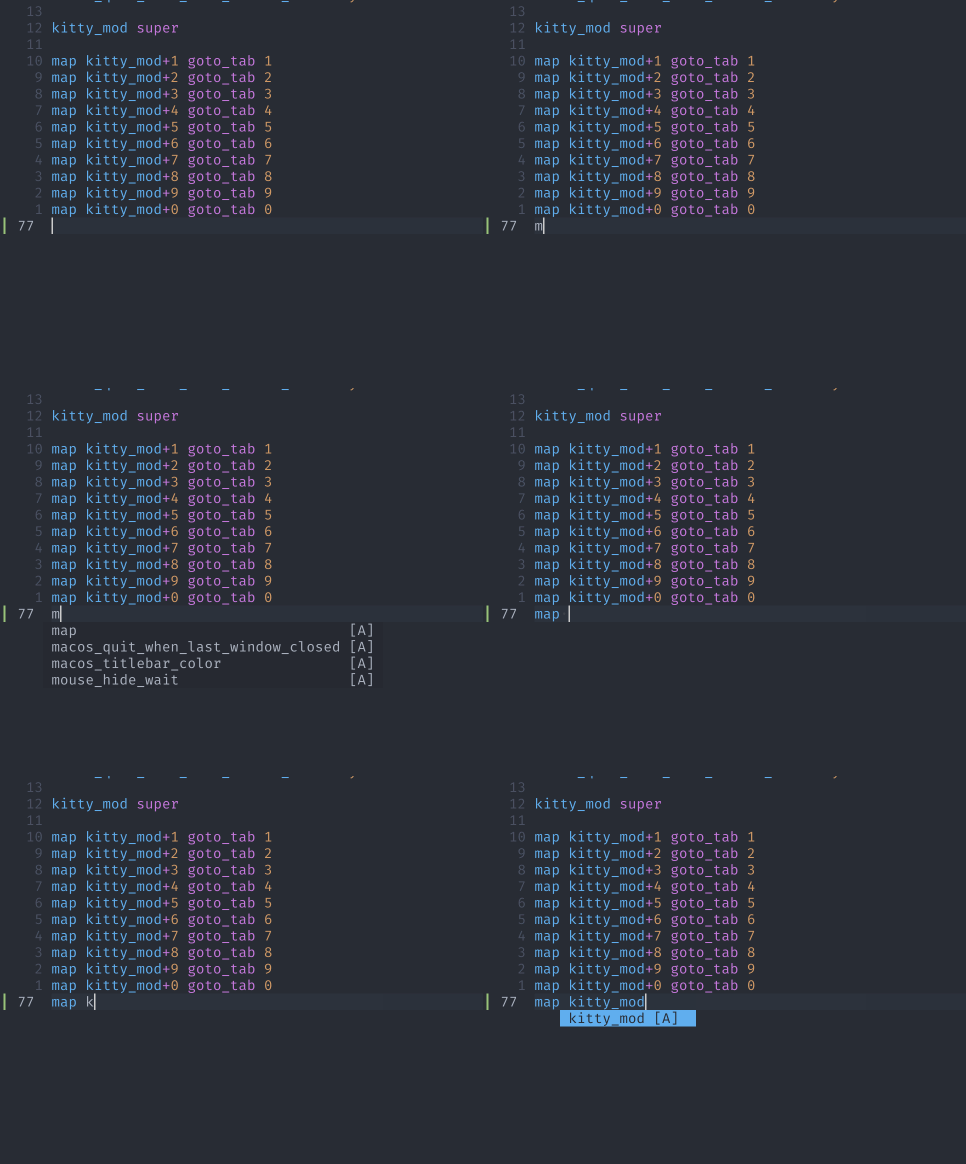
If that's working, it's time to move on.
Ruby Support
First thing you'll want to do is gem install solargraph. Solargraph provides IDE tools for developing with Ruby. Specifically, it provides a Language Server implementation that coc.nvim can consume.
Once you've installed it run solargraph config. This will generate a .solargraph.yml configuration for you to adjust to your project
Tip: Open the config and adjust your include and excludes. Solargraph is a great tool, but can take a minute to start providing information. Check out this comment from the author about load times. It can take up to ~20 seconds to load up ShareGrid.
Now edit your vim config and add this variable:
let g:coc_global_extensions = ['coc-solargraph']
From the documentation:
Global extension names to install when they aren't installed, define this variable to a list of extension names when you can't use |coc#add_extension()|
Save and re-open vim. You should notice a terminal buffer open up--don't worry, it's coc.nvim installing the coc-solargraph extension!
Once installed, you should be able to jump right into some ruby, open up a test.rb, think of a class you're familiar with in your codebase, and try something out:
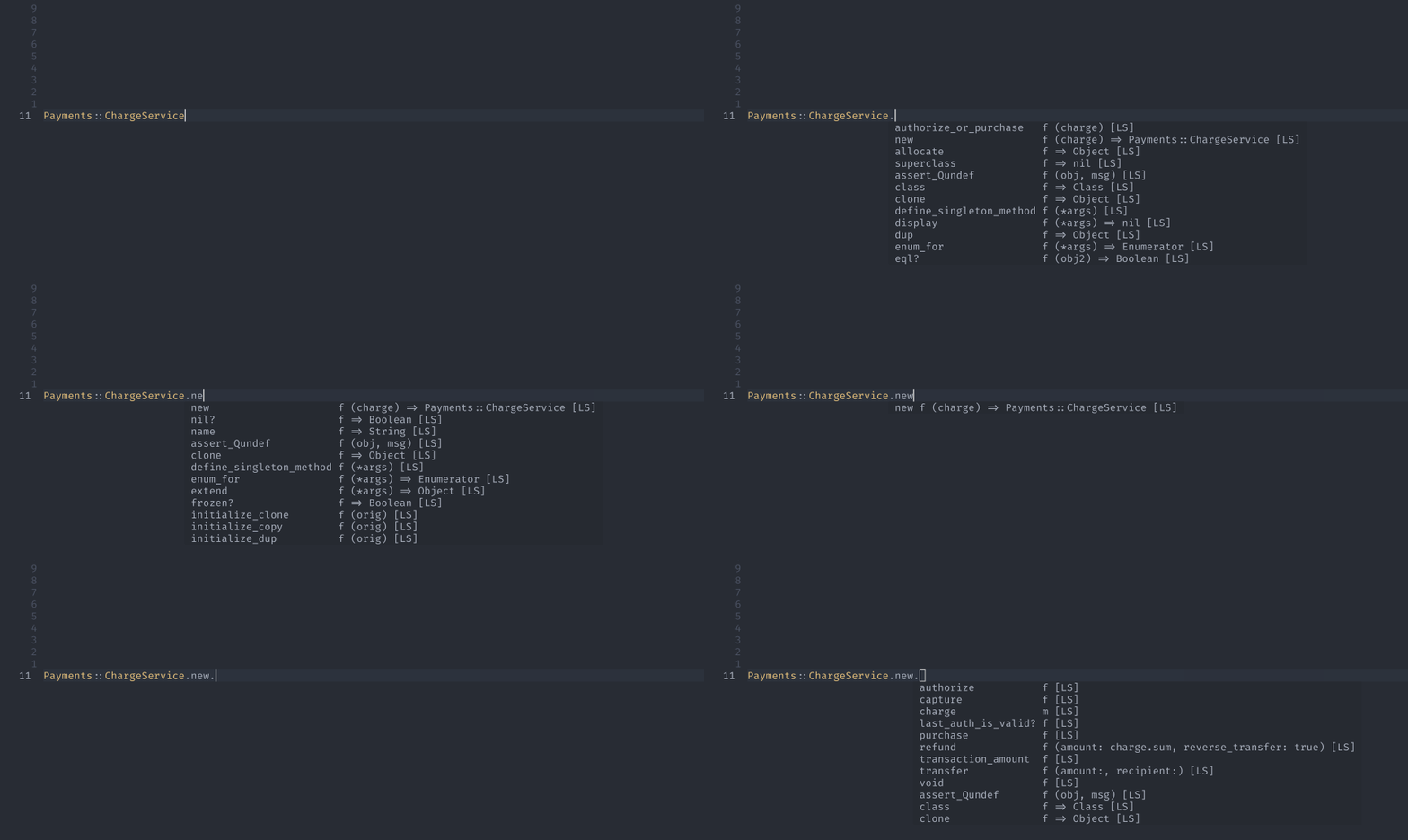
As you can see above, Solargraph is providing accurate information about what methods the class responds to.
Now that you've gotten your feet wet, go back to coc-interfaces and add some mappings for jumping to references, implementations, and more.
Final Notes
This really only scratches the surface for coc.nvim as a plugin.
You should know that your experience will not always be the same. Not all language servers implement the whole spec, and some of them don't follow the rules either. Some will give you diagnostics as you work, some might only give them to you after you save. You'll figure out what they can do as you go.
I recommend adding the coc-json extension. coc.nvim uses its own configuration in your vim directory called coc-settings.json, you can use :CocConfig to open it up for the first time.
The extension will give you much more information about the settings that are available. You can toy around with it. Try typing out "codelens".
For your configuration, I recommend doing this right away:
{
  "codeLens.enable": true,
  "solargraph.useBundler": true
}
The solargraph setting will tell coc.nvim to use bundler to run solargraph. This is useful if you add it as a dependency to a Gemfile in your project.
Good luck, have fun!